Most teams don’t need more tools. They need a workflow that stops handoffs from falling through the cracks.
Workflow management software maps the steps of repeat work, assigns each step to a person, and moves the work forward with rules, forms and approvals. For most small teams, Asana, monday.com, ClickUp or Onethread will do the job. A 10-person team pays about $360 to $1,320 a year for the first paid plan.
The hard part is the fit. Some tools run projects, some run requests, and some only connect apps.
We compared the pricing pages and plan limits of 10 tools so you can match one to how your team works.
Key Points
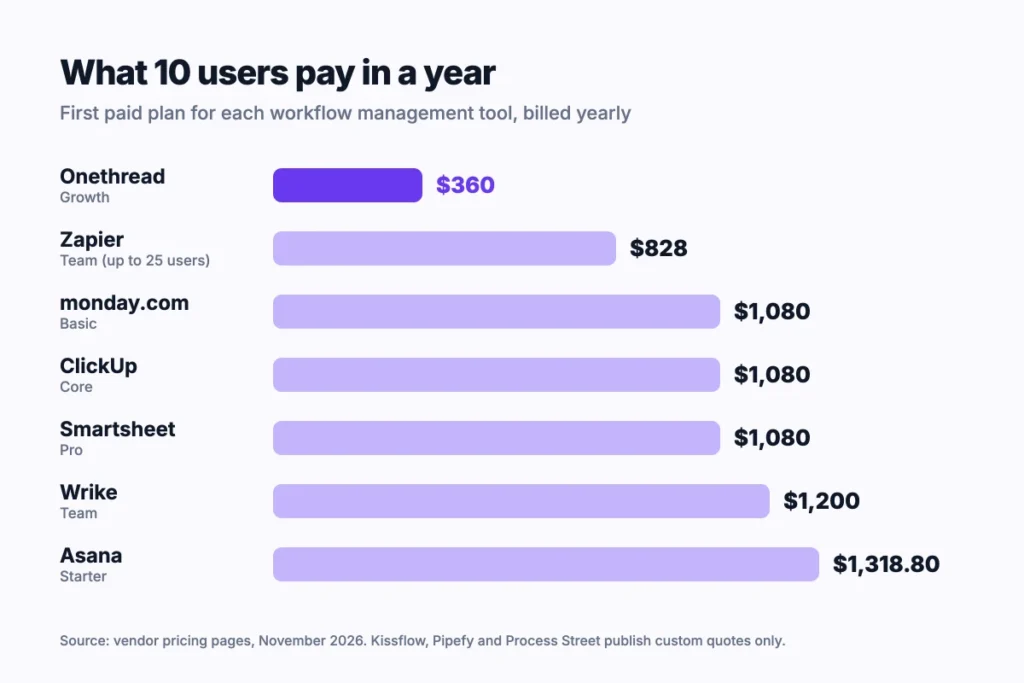
- Workflow management software runs repeat work through set steps, owners and rules. For 10 users, the first paid plan costs about $360 a year on Onethread Growth, $1,080 on monday.com Basic, ClickUp Core or Smartsheet Pro, $1,200 on Wrike Team and $1,319 on Asana Starter, billed yearly.
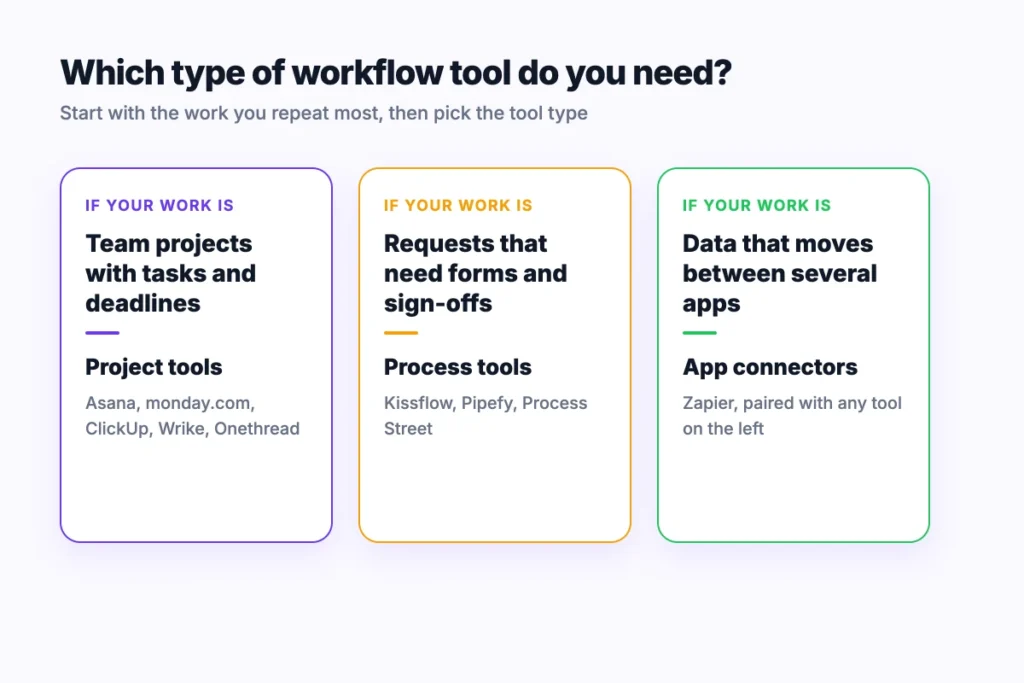
- Pick the tool type before the brand: project tools (Asana, monday.com, ClickUp, Wrike, Onethread) for team work, process tools (Kissflow, Pipefy, Process Street) for requests and approvals, and Zapier for moving data between apps.
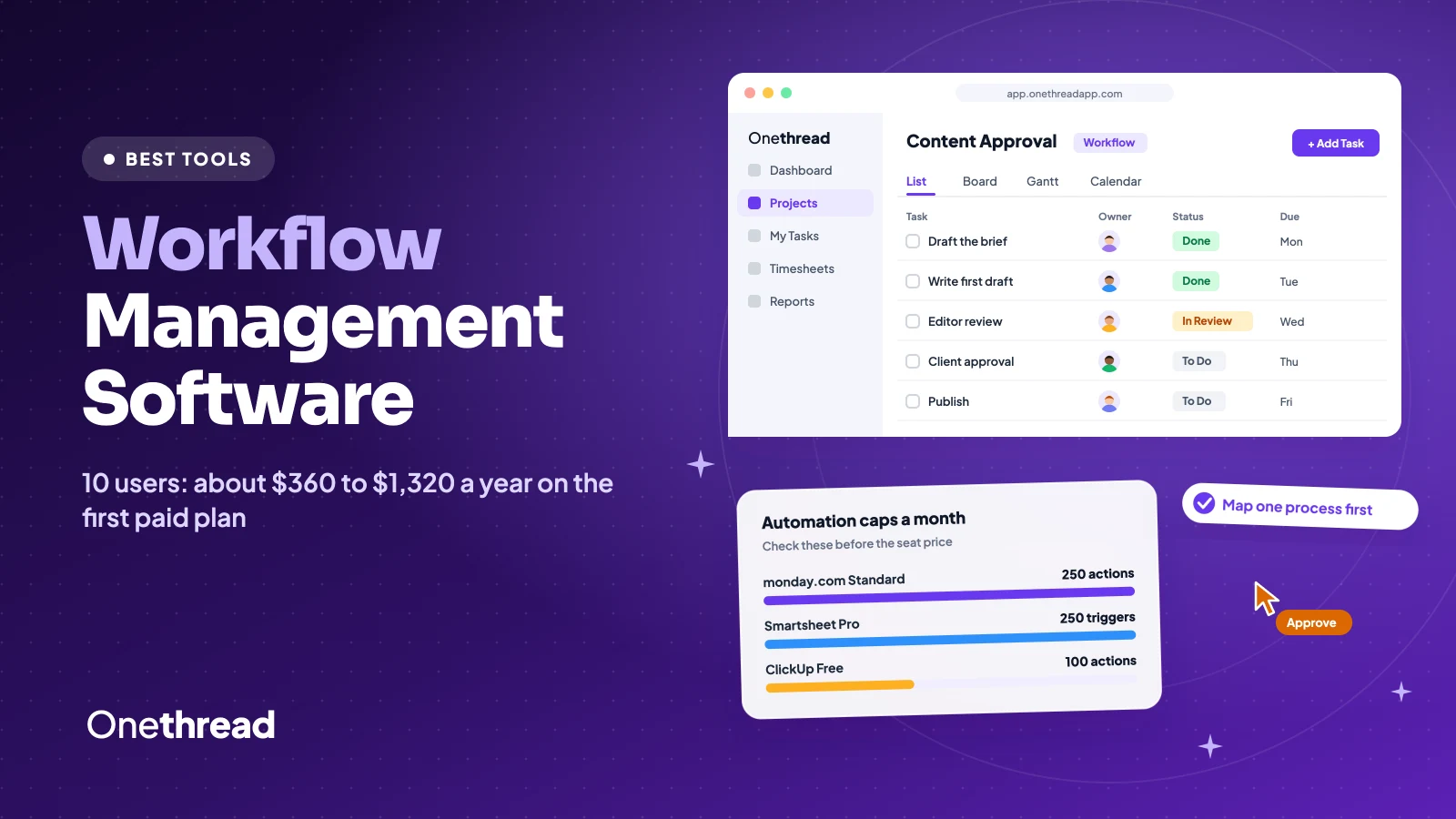
- Check the automation limit, not only the seat price. monday.com Standard caps automations at 250 actions a month, Smartsheet Pro at 250 triggers, and ClickUp Free at 100 actions.
- Map one real process on paper first, then test it in two tools on a free plan or trial before you pay.
Which Workflow Management Software Fits Which Team?
The right workflow management software depends on the work you repeat. We list the first paid plan for each tool, the yearly cost for 10 users, and our short read on who it fits.
| Tool | First paid plan, per user a month (billed yearly) | 10 users for a year | Best for |
|---|---|---|---|
| Asana | $10.99 | $1,318.80 | Cross-team projects with rules |
| monday.com | $9 (3-seat minimum) | $1,080 | Visual boards for many teams |
| ClickUp | $9 | $1,080 | One app for tasks, docs and goals |
| Wrike | $10 | $1,200 | Request intake and agencies |
| Smartsheet | $9 (up to 10 members) | $1,080 | Spreadsheet-style tracking |
| Kissflow | Custom quote | Custom quote | Company-wide process apps |
| Pipefy | Custom quote (free Starter up to 10 users) | $0 on Starter | Request and approval pipelines |
| Process Street | Custom quote | Custom quote | Checklists with approvals |
| Zapier | $69 a month for up to 25 users (Team) | $828 | Automations between apps |
| Onethread | $3 | $360 | Small teams that want a simple setup |
Sources: Asana pricing, monday.com pricing, ClickUp pricing, Wrike pricing, Smartsheet pricing, Kissflow pricing, Pipefy pricing, Process Street pricing, Zapier pricing, Onethread pricing.
How Did We Pick These Workflow Management Tools?
We started with the tools that most of the top-ranking guides review. monday.com shows up on all six pages we read. Asana, Zapier, Process Street, Kissflow and Wrike show up on four.
Then we sorted them by the kind of workflow they run. Project-style tools move tasks across a board. Process tools move a request through forms and approvals. Integration tools move data between apps.
For each tool, we read the vendor’s pricing page and plan comparison. We noted the first paid plan, the seat rules and the automation limits. We didn’t sign up for paid plans or run tests, so the pros and cons come from the published plan details. Where a vendor doesn’t publish a limit, we say so.
Our ranking isn’t paid, and no vendor saw this list before we published it. Onethread is our own product, so we list it last and state its limits too. You can read more about our review methodology.
One caveat: vendors change prices often. Check each vendor’s page before you buy.
We also checked what the top guides leave out. Few of them show what a real team pays in a year, and few explain automation caps. So we added a 10-user cost table and a section on limits.
What Is Workflow Management Software?
Workflow management software is a tool that runs repeat work through a fixed set of steps. Each step has an owner, a due date and a rule for what happens next.
Say a client sends a design request. A form captures the brief, and the tool assigns it to a designer.
Next, the draft goes to a manager for sign-off. If the manager doesn’t respond in two days, a reminder goes out.
That’s the whole idea. The software does the routing and the reminding, so people don’t have to chase each other. The manager sees every open request on one board.
Most workflow tools work the same way under the hood.
They have a trigger that starts the work, a set of tasks with owners, and rules that move the work to the next step. Views like boards, lists and timelines show where every item sits. Most workflow management programs run online in a browser, with mobile apps for quick updates.
And that’s where it differs from project management software. A project ends. A workflow repeats.
Project tools plan one-off work with a start and an end date, while workflow tools run the same process again and again. Many tools now do both, which is why Asana and monday.com appear on both kinds of lists. If you want to go further, see our guide to project efficiency software. You can try our free workflow generator to get a first draft quickly.
What Makes Asana a Strong Workflow Management Tool?
Asana suits teams that run a lot of cross-team work and want rules to handle the handoffs. You build a project, add sections for each stage, and set rules that move tasks or assign owners when a field changes.
Forms start on the Starter plan, and Advanced adds branching forms and approvals. Say your marketing team takes content requests. A form creates the task, a rule assigns the writer, and a sign-off step sends the draft to the editor.
Asana also includes templates for common processes, like content calendars and bug tracking. That saves a new team from building every project from scratch.
One snag: rules are easy to add and easy to forget. Name each rule after the step it handles, so the next admin can follow the logic.
Pricing: Personal is free for up to 2 users. Starter is $10.99 per user a month billed yearly, or $13.49 monthly. Advanced is $24.99 yearly, or $30.49 monthly. See our Asana pricing breakdown for seat rules.
Best For
- Teams that share work across departments and need clear owners.
Pros
- Unlimited automations on Starter, per the pricing page.
- Timeline and Gantt views on Starter.
- Branching forms and approvals on Advanced.
Cons
- The free tier stops at 2 users.
- Approvals need the Advanced plan.
- Costs more per seat than most tools here.
How Does monday.com Handle Team Workflows?
monday.com runs work on colorful boards. In monday.com, each row on a board is called an item. It can hold a status, an owner, a due date and files, and automations move it when a column changes.
It works well when many teams want the same visual setup. Sales, marketing and operations can each run their own board and roll it up in a dashboard.
The catch is the automation cap. Standard includes 250 automation actions and 250 integration actions a month. Pro raises both to 25,000.
Here’s what that looks like in practice. A five-person sales team moves each deal from Lead to Won. Every column change can fire a notification, and every notification counts toward the monthly cap.
Templates help you start fast. monday.com lists more than 200 of them, even on the free tier.
Pricing: Free for up to 2 seats. Basic is $9, Standard $12 and Pro $19 per seat a month, billed yearly, with a 3-seat minimum. Our monday.com pricing guide covers the seat buckets.
Best For
- Companies that want one visual board style for many teams.
Pros
- Easy to read boards and dashboards.
- Unlimited free viewers from Basic up.
- 25,000 automation actions a month on Pro.
Cons
- Paid plans start at 3 seats.
- Basic has no automation allowance listed on the pricing page.
- Monthly billing isn’t discounted.
Why Do Teams Choose ClickUp for Custom Workflows?
ClickUp tries to be one app for tasks, docs, goals and chat. You can shape each space with custom statuses and fields, then switch between list, board and Gantt views of the same work.
That flexibility is the draw. It’s also the learning curve, since a new team can spend a week deciding how to set it up.
Every plan lets you invite team members. The free tier caps automations at 100 actions a workspace a month and storage at 60 MB.
Say your team runs weekly sprints and a content calendar. ClickUp can hold both, with docs linked to the tasks they describe.
Task management sits at the core, with subtasks, checklists and dependencies. Business raises the automation cap to 10,000 actions a month, which suits teams with many rules.
Pricing: Free Forever costs $0. Core is $9 and Business $17 per user a month billed yearly. AI Super Credits cost $10 per 10,000 credits. See our ClickUp pricing review for the full plan list.
Best For
- Teams that want tasks, docs and goals in one place.
Pros
- Custom statuses and fields on every space.
- 10,000 automation actions a month on Business.
- A usable free tier for small groups.
Cons
- Setup takes time to get right.
- Free storage is only 60 MB.
- AI use costs extra credits.
How Does Wrike Manage Requests and Approvals?
Wrike is built for teams with a steady flow of requests. Agencies and in-house creative teams are the classic fit. Dynamic request forms collect the brief, and custom workflows move the work through your own statuses.
Its Gantt chart lets you drag tasks to reschedule a plan, and dependent tasks move with them. And it connects with tools like Slack, Salesforce and Google Calendar, so updates reach people where they already work.
Say a client sends ten requests a week. A request form sorts each one by type, and a custom workflow sends it to the right person with the right status.
That’s the strength. Wrike doesn’t publish automation caps per plan, though, so ask sales about limits before you build heavy rules.
Pricing: Free costs $0. Team is $10 per user a month for 2 to 15 users. Business is $25 per user a month for 5 to 200 users, billed yearly only.
Best For
- Agencies and creative teams that run on intake forms.
Pros
- Request forms built for intake.
- Gantt chart with drag-and-drop scheduling.
- Plans scale from 2 to 200 users.
Cons
- Business and higher are annual only.
- Team plan caps at 15 users.
- The pricing page doesn’t list automation limits per plan.
When Does Smartsheet Make Sense for Workflow Tracking?
Smartsheet makes sense when your team already lives in spreadsheets. The grid feels familiar, and you can switch the same sheet to Gantt, card or calendar views.
Workflows here are alerts, reminders, update requests and sign-off requests. Pro includes 250 automated triggers a month, and Business removes the cap.
Free Contributors on Pro can view, comment, upload files and submit forms. It helps when many people send work in but few manage it. You pay only for the people who build and run the sheets.
Here’s a common setup. An operations lead tracks vendor orders in a sheet, and an update request goes to each vendor owner every Friday.
No one has to open the sheet to answer. They reply to the request, and the row updates. The lead sees every answer by Friday afternoon.
Pricing: Pro is $9 per member a month billed yearly, or $12 monthly, for 1 to 10 members. Business is $19 yearly, or $24 monthly, for 3 or more members. There’s no free tier, only a 30-day trial.
Best For
- Operations and finance teams that think in rows and columns.
Pros
- Familiar spreadsheet layout.
- Unlimited automations on Business.
- Free Contributors who can submit forms.
Cons
- No permanent free tier.
- Pro stops at 10 members.
- Low-code Bridge workflows cost extra.
What Does Kissflow Offer for Process Workflows?
Kissflow is a low-code platform for company-wide process apps. Think purchase requests, leave approvals and vendor onboarding, built as apps with forms, rules and dashboards. Each app can have its own owners and reports.
It suits larger companies that want one place for many internal processes. IT can keep control while each department builds its own forms.
The pricing page lists unlimited applications at the enterprise level. It also lists 25 or more AI automation features.
Say finance needs a purchase request process with three sign-off levels. In Kissflow, you build a form, set the routing rules by amount, and publish it as an app.
That power comes with a sales process and a setup project. You’ll talk to the vendor before you see a price, which slows down a small team that wants to start this week.
Pricing: Custom quote on fixed annual agreements. The pricing page mentions no free tier or trial.
Best For
- Mid-size and large companies that run many internal approvals.
Pros
- Builds full process apps, not just task lists.
- No surcharges for AI or API use, per the pricing page.
- Unlimited apps on the enterprise rollout.
Cons
- No public prices.
- No free tier or trial listed.
- More than a small team needs.
How Does Pipefy Run Request-Based Workflows?
Pipefy moves requests through a pipe of stages. Each request becomes a card, forms collect the details, and automations move the card when a stage is done.
The free Starter plan is a fair way to test it, with no credit card needed. It covers up to 10 users and 5 processes, with 15 automation jobs a month. That last limit runs out fast on a busy process.
Here’s a typical use. An HR team runs hiring requests through stages like Request, Budget Check, Posted and Filled. Each stage has its own form fields, owner and due date.
Guests can submit requests without a paid seat on Business. That helps when most people only send work in. Business allows up to 100 guests, while Enterprise has no guest cap.
Pricing: Starter is free. Business and Enterprise are custom quotes. Business includes 300 automation jobs a month and Enterprise 2,000.
Best For
- Operations, finance and HR teams that handle many requests.
Pros
- Free tier for up to 10 users.
- Clear stage-by-stage view of each request.
- Up to 100 guest users on Business.
Cons
- Only 15 automation jobs a month on Starter.
- No public price for paid plans.
- Card limit of 50 a month on Starter.
Why Use Process Street for Checklists and Approvals?
Process Street turns your standard steps into checklists that people run again and again. Each run can include forms, approvals, conditional logic and dynamic due dates.
It shines for onboarding, audits and any process where steps must happen in a set order. Each run keeps a record of who did what and when. That record helps when an auditor asks. Enforced task order stops someone from skipping ahead.
Say you onboard a new client every week. The same 20 steps run each time: contract, kickoff call, access setup, first report. A Process Street checklist holds those steps in order, and conditional logic hides the ones that don’t apply.
Workflow automation here is lighter than in Zapier. The Startup plan includes 100 automation actions a month, so heavy automation needs Pro.
Pricing: All plans are custom quotes. A 14-day trial of Pro needs no credit card. The Startup plan is a lower-priced Pro for companies with fewer than 15 employees and under $2 million in revenue.
Best For
- Teams with repeatable checklists, like onboarding or compliance.
Pros
- Approvals and conditional logic on every plan.
- Unlimited workflows and forms.
- Discounts for registered non-profits.
Cons
- No public prices.
- Startup plan allows only 100 automation actions a month.
- Less suited to open-ended project work.
How Does Zapier Automate Workflows Between Apps?
Zapier doesn’t manage tasks. It connects the apps you already use. A form entry can create a task, post to Slack and update a sheet, with no copying by hand.
Pair it with any tool above when your workflow crosses apps. Most project and process tools on this list connect to it. The free tier allows 100 tasks a month on two-step Zaps, which is enough to test one idea.
Say a lead fills in a web form. A Zap can add the lead to your CRM, create a follow-up task in your workflow tool and alert the sales channel.
That’s three manual steps gone. But each step counts as a task, so a busy form can push you into a higher tier fast.
Pricing: Free costs $0. Professional starts at $19.99 a month for multi-step Zaps. Team starts at $69 a month for up to 25 users. See our Zapier pricing guide for task tiers.
Best For
- Teams whose workflows jump between several apps.
Pros
- Connects thousands of apps without code.
- Shared Zaps and folders on Team.
- A free tier for simple automations.
Cons
- Not a place to manage tasks or projects.
- Costs rise with task volume.
- Free tier allows two-step Zaps only.
Where Does Onethread Fit for Small Teams?
Onethread is our own project and workflow tool, built for small teams that want a simple setup. You get projects, tasks, discussion rooms, dashboards and a company notice board in one place.
Paid plans add automated workflows. Scale adds custom workflows, phases and milestones, advanced reports and custom roles. Battery Low Interactive’s CEO, Minhaz-us-Salakeen, says it “helped us organize our work, improve efficiency, and enhance productivity.”
Say a five-person agency runs client projects and an internal content calendar. Onethread holds both, with discussion rooms beside the tasks, so feedback doesn’t scatter across email.
The trade-off is depth. Onethread keeps things simple, so teams that need complex branching logic may outgrow it.
Pricing: Basic is free for your first 10 users, with up to three workflows and 15 GB of storage. Growth is $3 per user a month billed yearly, or $3.60 monthly. Scale is $5 yearly, or $6 monthly. See the Onethread pricing page and features page for details.
Best For
- Small teams that want low cost and a short setup.
Pros
- Free for the first 10 users.
- The lowest paid price on this list.
- Projects, chat and dashboards in one app.
Cons
- The free tier allows only three workflows.
- Risk management, RAID log and budgeting are still listed as upcoming.
- Fewer integrations than Zapier-connected tools.
Which Features Should Workflow Management Software Include?
Good workflow management software covers four jobs: it moves work, collects input, shows status and protects data. Use these four checks when you compare plans, because the real limits hide in the feature list. The headline price rarely shows them.
Automation Rules and Limits
Automation rules move work without a person clicking. A rule might assign a task when its status changes or send a reminder before a due date.
Check the monthly cap. monday.com Standard allows 250 automation actions, Smartsheet Pro 250 triggers, and ClickUp Free 100 actions.
A busy process can burn through 250 actions in a week. Ten requests a day, with three rules each, uses 150 actions in five working days. Estimate your own volume before you pick a plan.
Forms and Approval Steps
Forms start most workflows. They collect the same details every time, so nobody has to ask twice. Required fields stop half-filled requests at the door. Hidden fields can tag each request by client or type.
Approvals stop work until the right person signs off. Asana puts them on Advanced, while Process Street includes them on every plan.
If sign-offs are central to your process, check this line first. A tool without approvals forces people back to email, which is the problem you set out to fix.
Views and Reporting
Views show where every item sits. Most tools offer list, board, calendar and Gantt views, and teams often use two or three of them. A board suits daily work, while a Gantt view suits planning.
Reports and dashboards show what’s stuck. Look for a view that shows overdue items and the person who owns them. That one view does more for a manager than ten charts.
Also check who can see reports. Some tools keep dashboards for paid seats only.
Integrations and Security
Connections let your workflow tool talk to email, chat and storage. Without them, people copy data by hand, and copied data goes stale.
Security matters once client data flows through the tool. Ask the vendor where it keeps data and who can export it.
Agencies with client contracts should check this before the trial ends. Two-factor login and single sign-on (SSO) add a layer of identity verification before anyone opens a workflow. Check which plan includes SSO, since many vendors keep it for Enterprise.
What Are the Benefits of Workflow Management Software?
The main benefit of workflow management software is fewer dropped handoffs. When the tool routes work and sends reminders, people stop chasing each other in email. Managers also get a live view of what’s moving and what’s stuck.
The effect shows up in small places. Fewer “any update?” messages. Shorter status meetings. And fewer tasks that sit for a week because nobody knew they were next.
Teams usually see four wins:
- Fewer errors: Forms collect the same fields every time, so requests arrive complete.
- Clear owners: Every step has a name next to it, so nobody wonders whose turn it is.
- Less status chasing: Boards and dashboards show progress without a meeting.
- Repeatable work: A process that runs the same way can be measured and fixed.
The market is growing fast. Future Market Insights projects the workflow management software market will grow from USD 13.4 billion in 2025 to USD 158.6 billion by 2035.
Workflow management software also helps new hires. A documented workflow shows them the steps on day one, without a long handover from a busy colleague.
But a tool won’t fix a broken process. If nobody agrees on the steps, the software just makes the confusion faster. Write the steps down first, then pick the tool.
How Do You Choose Workflow Management Software?
Choose workflow management software by matching the tool type to your main workflow, then checking cost and limits for your real team size. Start with the work, not the feature list.
Four checks help you decide:
- Name your main workflow: Write the one process you repeat most, like client requests or onboarding.
- Pick the tool type: Project tools for team work, process tools for approvals, Zapier for app-to-app steps and workflow automation.
- Count your seats and automations: Multiply users by the per-seat price, then estimate monthly automation runs.
- Test with real work: Run one live process for two weeks on a free tier or trial.
Example: A 10-person agency on monday.com Basic pays $9 x 10 x 12 = $1,080 a year. On Asana Starter it pays $10.99 x 10 x 12 = $1,318.80. On Onethread Growth it pays $3 x 10 x 12 = $360. Plug in your own headcount to see the gap.
Top Tip: Before you buy, ask each vendor how many automation runs your process needs a month. Then compare that number with the plan’s cap, not the seat price.
If your workflows live across many apps, add Zapier to the shortlist. For lighter task tracking, our list of the best workflow apps and project workflow software covers simpler options.
What Should You Do Next With Workflow Management Software?
Workflow management software works when it matches the work you repeat. Project tools run team work, process tools run sign-offs, and connector tools like Zapier link the apps in between. Price and automation limits decide the rest, so a cheap seat with a low cap can cost more in lost time.
This week, write down one process your team repeats, with each step and owner. Test it in two tools from the table, then keep the one your team still opens on day ten. The best tool is the one people use without being reminded.
Related reading: How do you manage workflow effectively, Editorial workflow and Free workflow software.
More Guides on Workflow and Task Management
- Best enterprise workflow software
- Kanban project management
- Best kanban software
- Best project task management software
- Best task management software
- Best workflow automation software
- Best workflow diagram software
- Bpm tools
- Business process management software guide
- How to prioritize tasks
- Kanban board examples
- Project subtasks
- Task automation softwares
- Task management app
- Task management tools
- Task prioritization
- Task project management
- Workflow management capabilities
FAQs
Do I Need Technical Skills to Use Workflow Management Software?
No, most workflow management software needs no coding. Tools like Asana, monday.com and Onethread use drag-and-drop boards, simple forms and plain rules like “when status changes, assign a person.” Low-code platforms like Kissflow can build full apps, so they reward someone who enjoys setting things up.
What Processes Can Workflow Management Software Automate?
Workflow management software can automate any process with set steps and clear owners. Common examples are content requests, client onboarding, purchase approvals, leave requests, bug reports and invoice reviews. If a process has a form, a handoff and a sign-off, a workflow tool can route it and send reminders.
What Are the Three Basic Components of a Workflow?
The three basic components of a workflow are input, transformation and output. Input starts the work, like a form or request. Transformation covers the steps and rules people follow, and output is the finished result, like an approved file. Workflow management software tracks all three in one place.
Is a Workflow Management System the Same as Workflow Software?
Yes, the two terms mean the same thing in most cases. Both describe a tool that runs repeat work through set steps, owners and rules. Some vendors use “system” for larger platforms that also build custom process apps, like Kissflow, but the core job stays the same.
Can Small Businesses Use Workflow Management Software?
Yes, and many tools have free tiers that fit small businesses. Onethread is free for the first 10 users, Pipefy’s Starter plan covers up to 10 users, and Asana’s Personal plan covers 2. Start with one process, then pay only when you hit a limit.